
Country

Choose your country

AustraliaGlobal website

Clinical notes and markings for aesthetic clinics

The full treatment picture. In one clinical record.

Bring notes, photographs, anatomical markings and treatment forms together. Keep consent and script status, device settings and product use in view, with the context practitioners need before, during and after treatment.

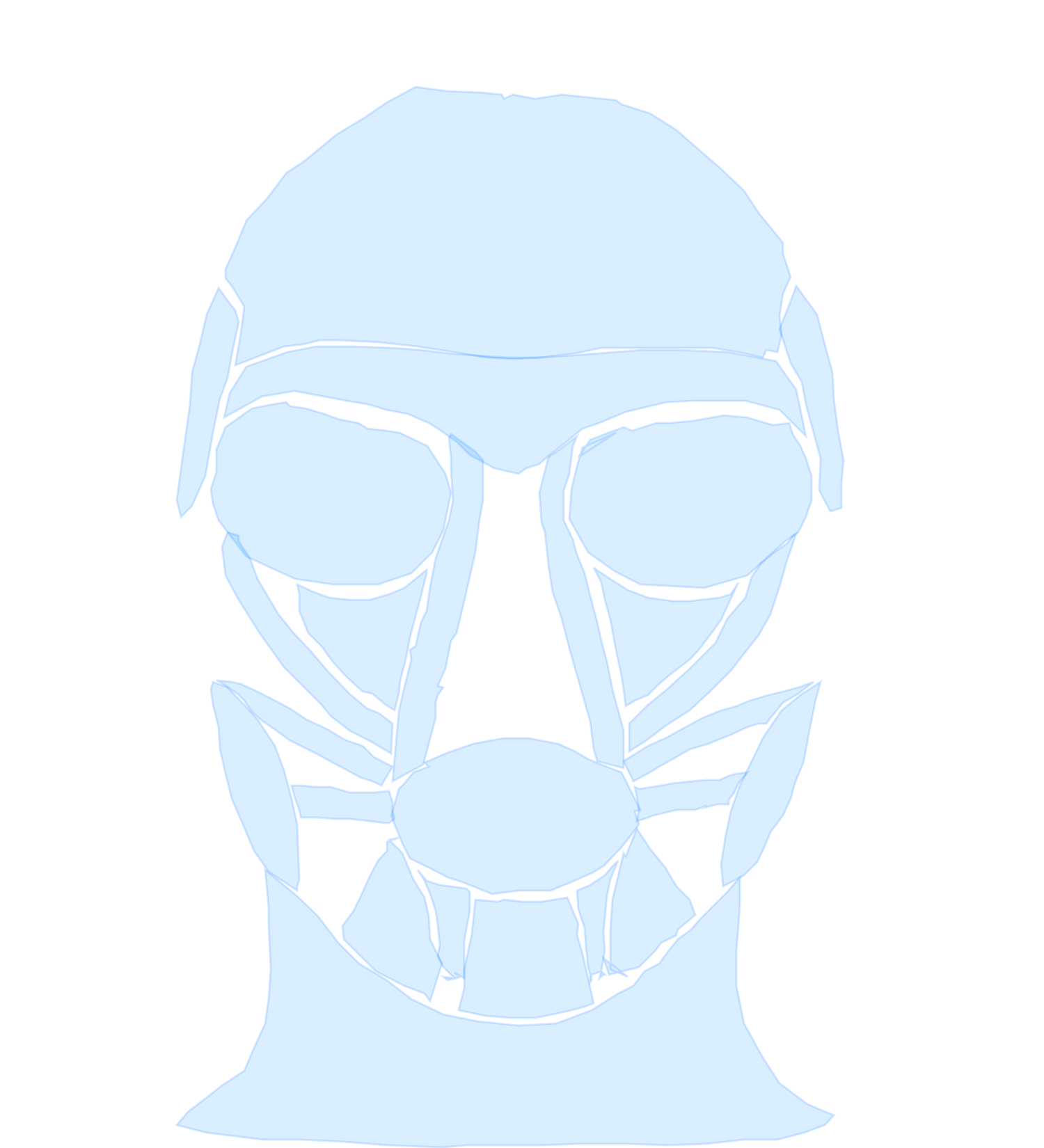
Clinical note preview. Practitioner markings identify Frontalis and Glabellar areas and update the recorded quantity. Unit billing follows those quantities. Treatment consent and the new patient form are completed. A scanned product's batch, expiry and recorded use stay visible.

At a glance

We understand what happens behind the treatment room door.

A consultation is more than a text note. It is knowing what the patient has completed, reviewing their photos, recording markings and device settings, and capturing the product used. DappleOS brings that work together on iPad or computer, so the record reflects what happened in the room.

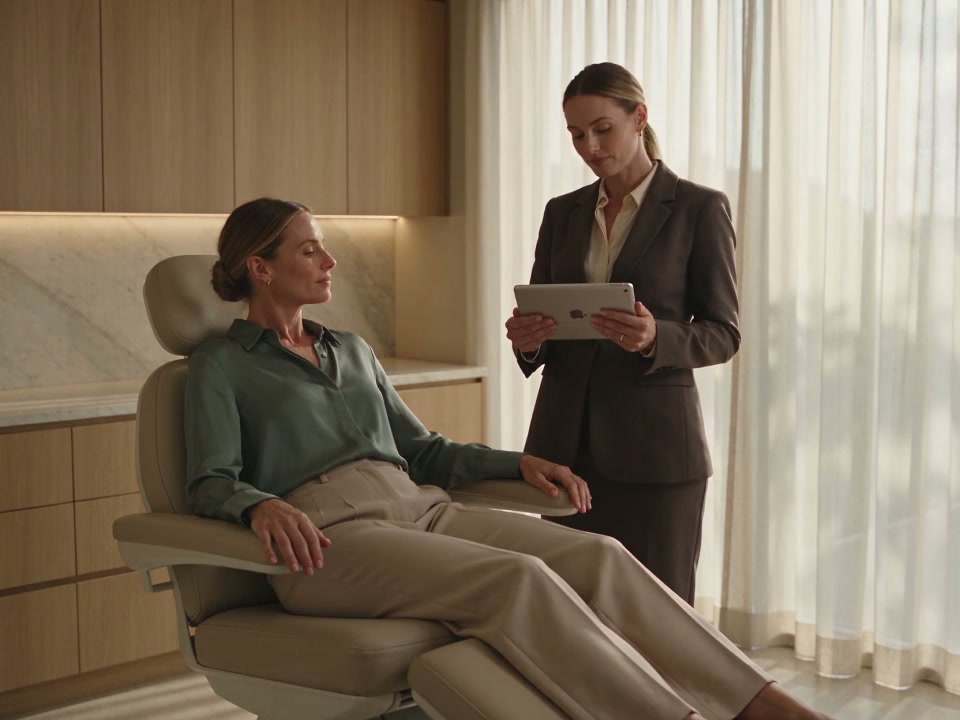
A practitioner stands beside a patient in an elevated treatment chair, reviewing their visit on iPad

Injectable script requests

Know when a script is required.

For nurses completing a note, the injectable script card shows whether a valid script covers the selected treatment. Request a script from the note when needed, for your clinic’s prescriber to review.

Explore script status

On iPad or computer

Your treatment room. Your way of working.

Use DappleOS on iPad beside the treatment chair or on a computer at your desk. Keep the patient’s forms, photos, markings and treatment details together, with Apple Pencil for precise markings and drawing on iPad.

Before treatment

Know what’s ready. See what’s still needed.

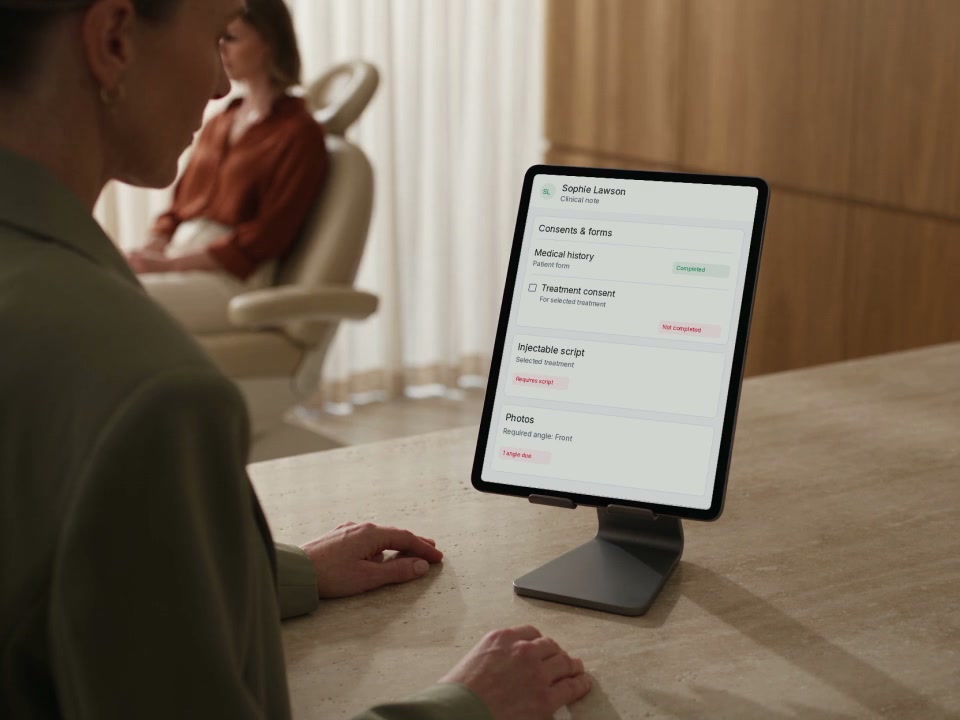
Is the script in place? Has the patient completed their consent and forms? Are the required photos captured? DappleOS brings those statuses into the treatment record, so your team can see what is complete and what needs attention.

A practitioner reviews forms, consent, script and photo status on a supported iPad, with the patient in the treatment chair behind them

Start the visit knowing what’s complete and what still needs attention.

  • Script statusSee whether a valid script covers the selected treatment or a script is still required.
  • Treatment consentKnow whether consent has been completed, and display or send an outstanding form for the patient to complete.
  • Patient formsKeep required forms and their completion status visible, with medical history available to review.
  • Required photosSee which treatment photo angles have been captured and which are still due, with upload progress kept separate.
Dr Cris Quitral
“Before treatment, I want the essentials in view: a current script where required, completed consent, the latest patient forms and the required photos. A comprehensive record should also capture what was done and the practitioner’s reasoning. That is the foundation of a defensible clinical note.”
Dr Cris QuitralCo-founder and clinical advisory board member

Injectable script status

Know where the script stands. Right in the note.

For nurses completing a clinical note, the injectable script card shows whether a valid script covers the selected treatment. See what’s in place and request a script when one is needed.

  • See the status for each treatmentA valid script and a treatment that requires a script have distinct statuses. Open an existing script from the note to review its details.
  • Keep consent requirements visibleIf your clinic requires completed consent before a script request, the Request action stays unavailable until those forms are complete.
  • Request from the noteStart a request for the treatments that need a script. Your clinic’s prescriber reviews the request and makes the prescribing decision.
Two script states you can see in a clinical note

A script is in place

A script is needed

Interactive anatomical markings

Mark the treatment. Keep the detail connected.

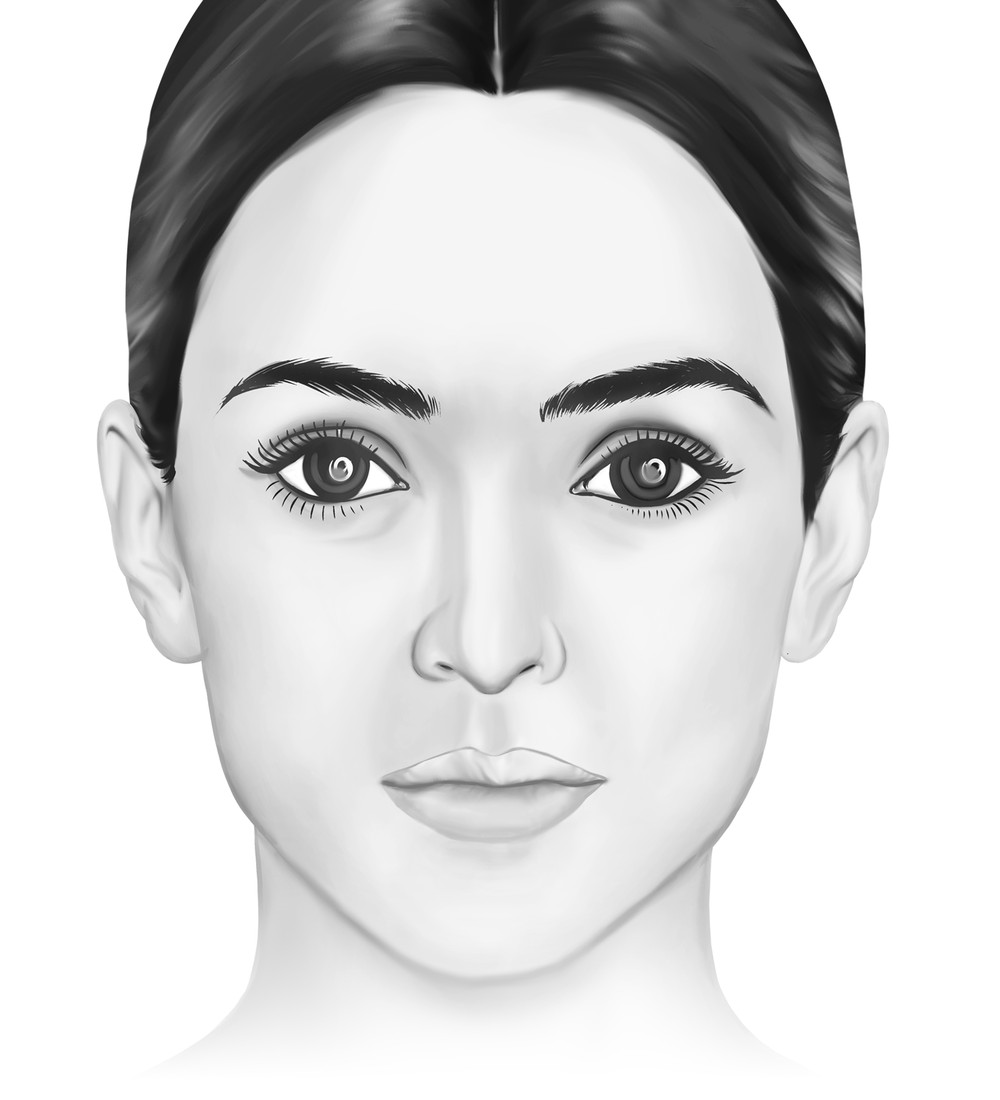
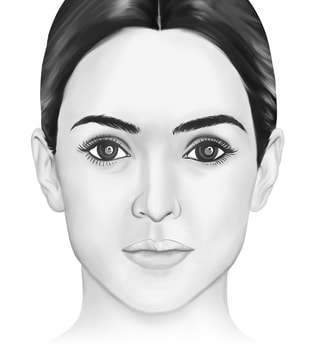
Place a mark on the interactive face and DappleOS identifies its anatomical region. Keep the location, product and recorded quantity together, with the tools to review and adjust the detail.

Automatic anatomical detection

Marks map to the muscle or fat-pad regions in the selected diagram. Choose the intended region where areas overlap, or reassign it when needed.

Use the available needle, cannula and drawing tools, with diagram selection and zoom to work at the right level of detail.
Record the treatment. Keep billing connected.

Charge by unit or treatment area while retaining the detail of what was used. Your clinic’s treatment and product configuration connects the recorded quantities with the appropriate billing items.

Prepare an itemised estimate from the note, review amounts or ranges, then display or send the configured consent form for the patient to review and sign.

Forms for every treatment

Your settings. With the previous visit in view.

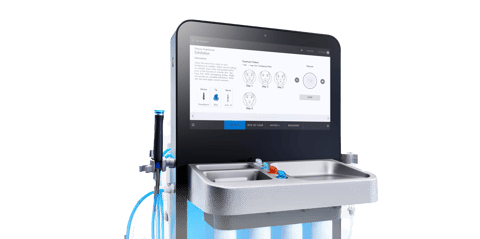
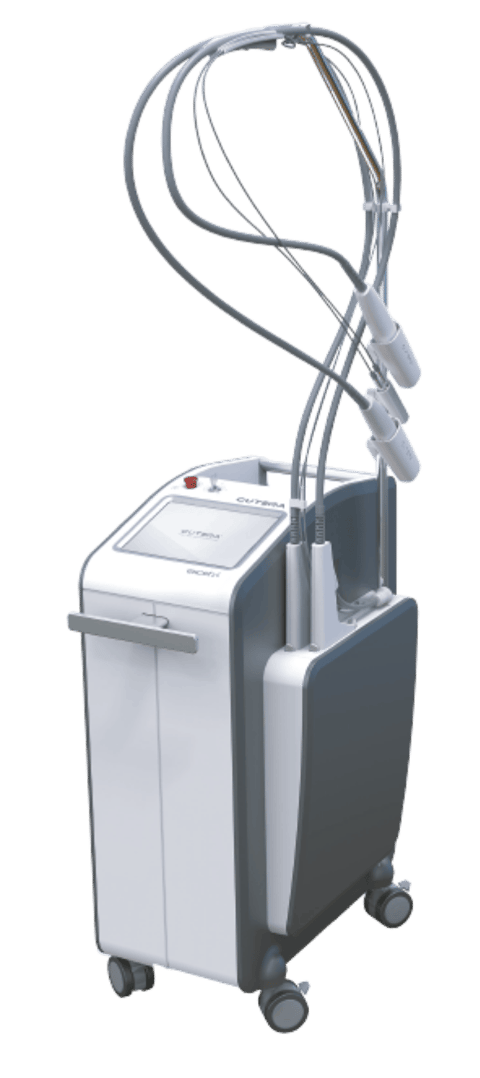
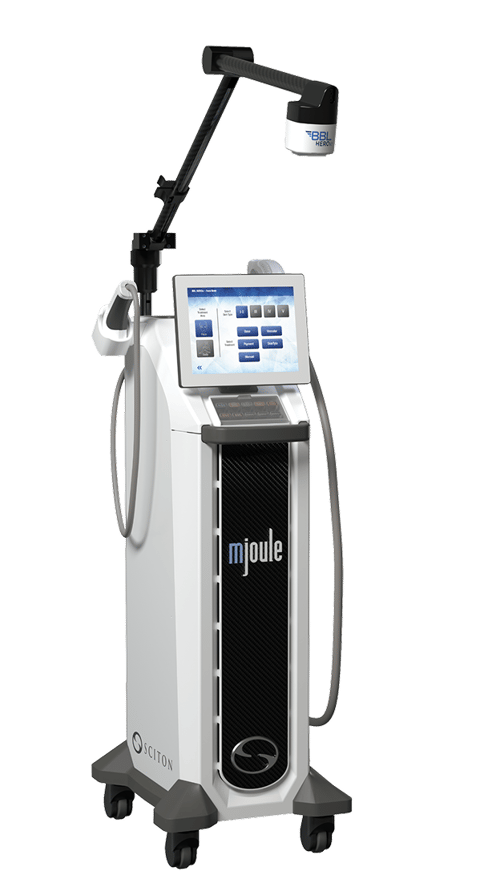
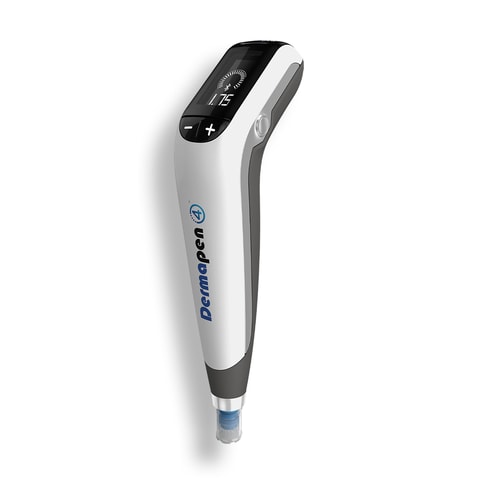
Dermapen, Hydrafacial, Cutera Genesis, Moxi and the other treatments you offer. Build practitioner forms around what your team needs to record, with your own questions, dropdown options and checkboxes. Keep dated previous values in view to review and copy.

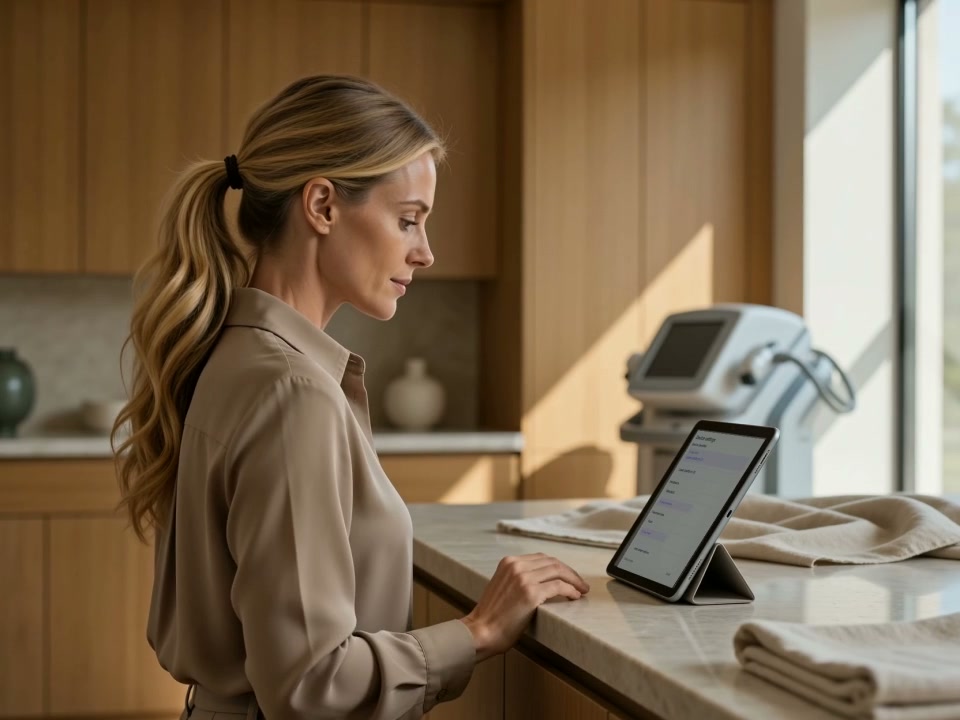
A clinician documenting a visit beside an idle energy-based treatment device

Made for the treatment room.

Choose the text fields, dropdowns, checkboxes and conditional questions your team needs for each treatment. The Cutera Genesis example shows one configuration; your clinic defines its own.

Previous values, with their dates

Review earlier entries in context, then deliberately copy, check and adjust values for the current visit. Saving the note records the completed settings form in the patient’s form history, retaining the form version used.

Your treatments. Your questions.

Your clinic defines the fields and options for each treatment. Choose your questions, dropdown options, checkboxes and when follow-up fields appear.

Your clinic configures the required photos.

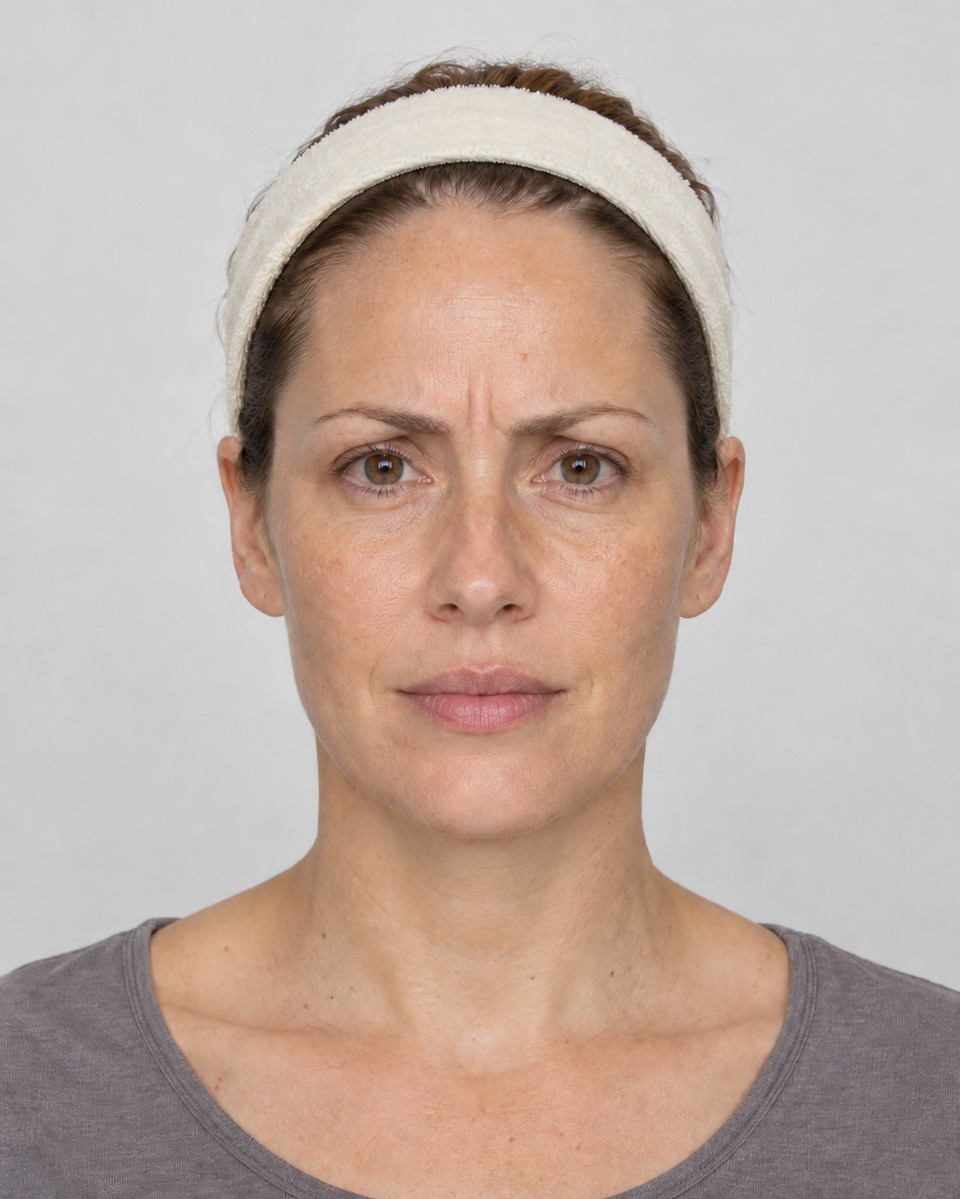
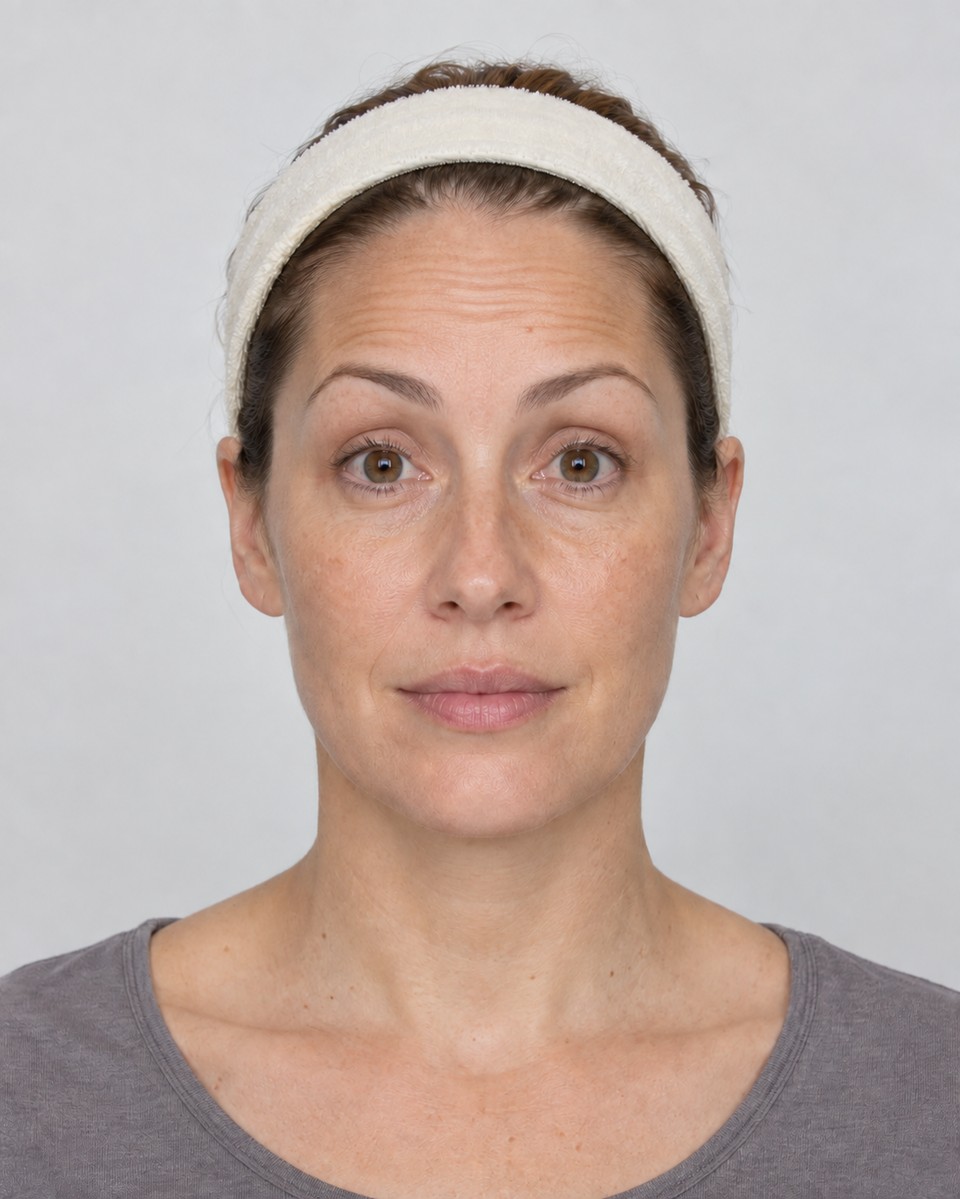
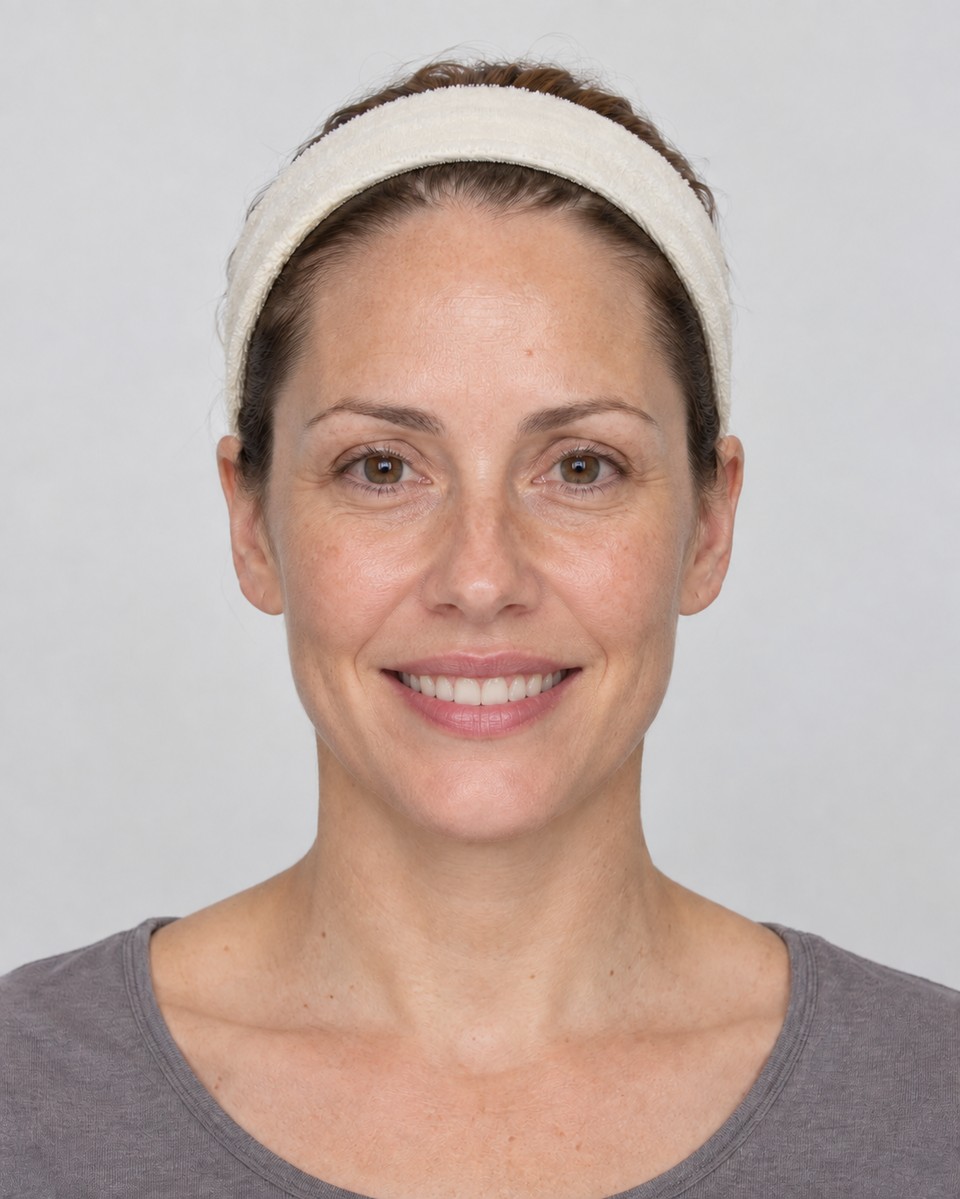
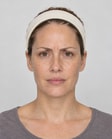
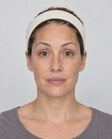
Choose the views and expressions your team needs to capture, such as Rest, Frown, Raise and Smile.

Photos and videos

Capture still images and videos.

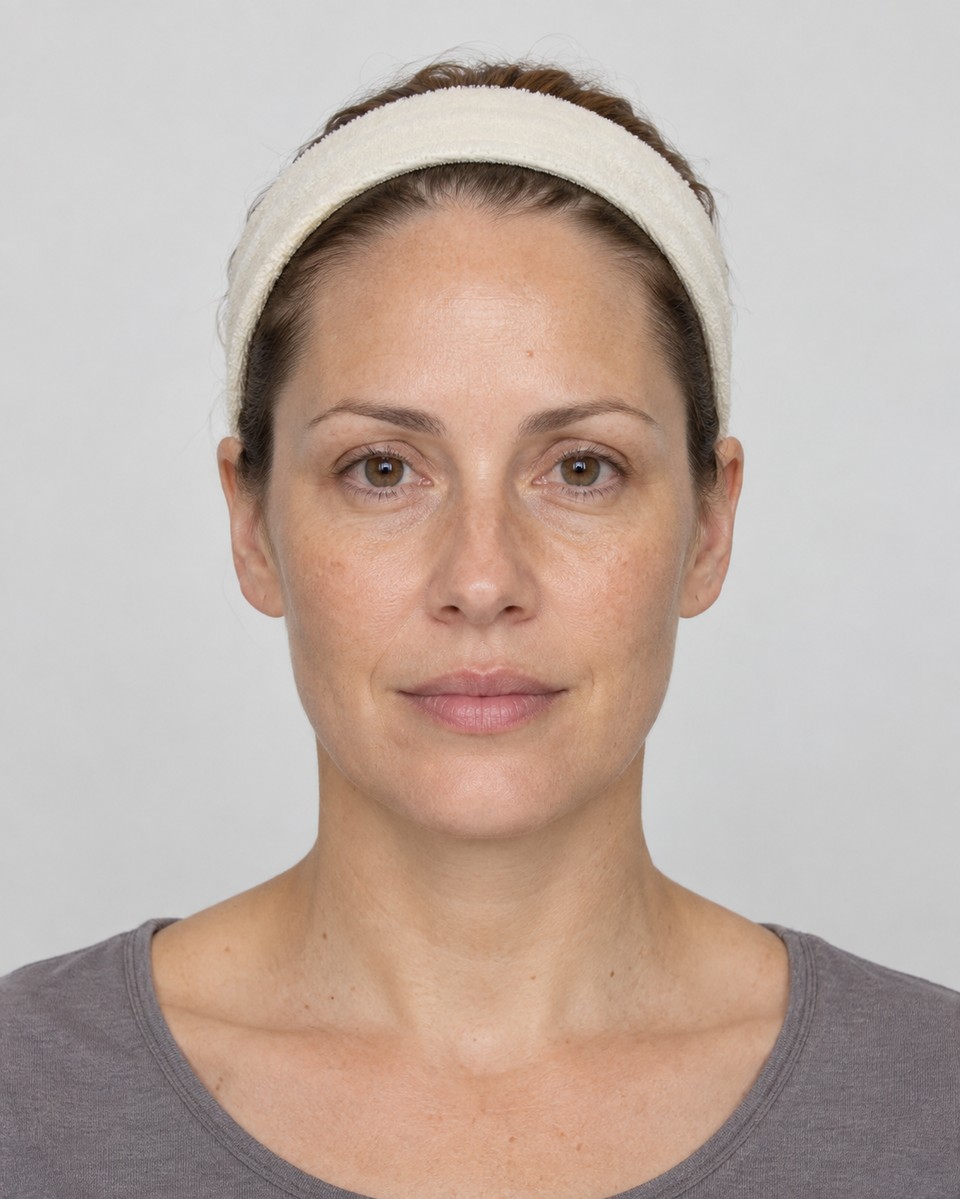
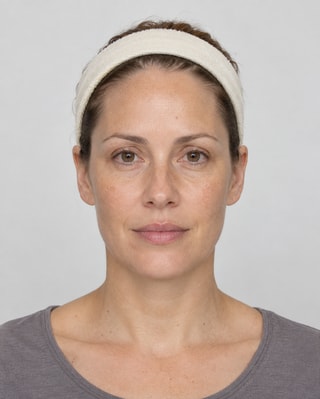
Configure the photo views and expressions your clinic requires, such as rest, frown, raised brows and smile. Keep dated photos with the treatment record, and use short videos in the native app to record muscle movement before and after treatment.

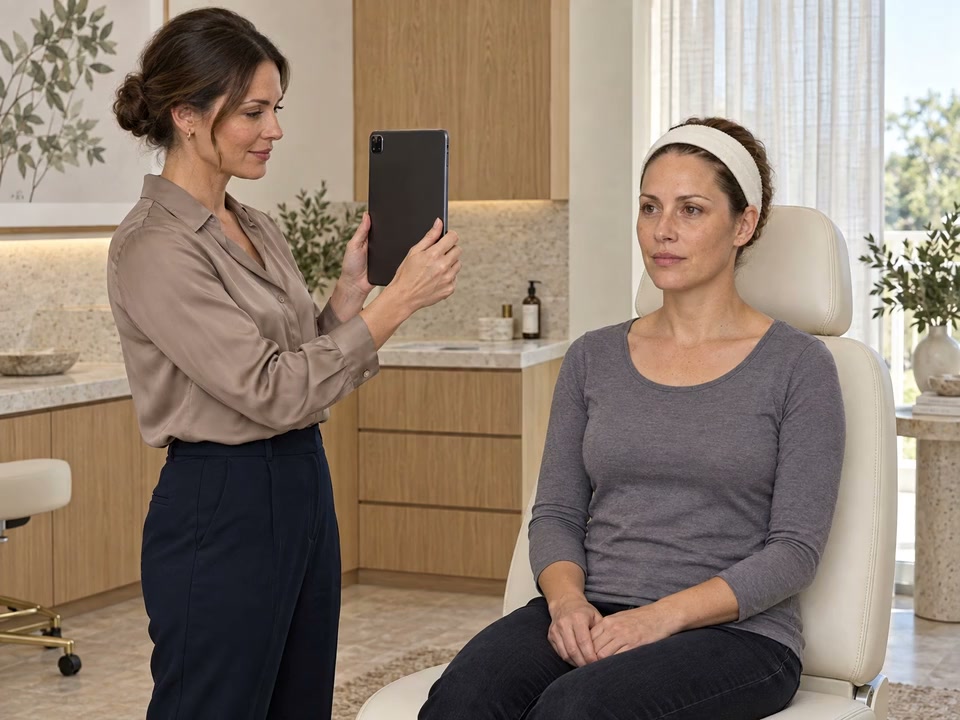
A practitioner captures treatment photos on iPad beside the same patient shown in the photo demonstration, seated in an elevated treatment chair

Product capture and traceability

Keep product use with the treatment record.

Scan a registered product barcode and connect the product to the treatment. Review batch and expiry details, record the quantity used, then save the note to update the configured stock workflow.

Recorded use becomes a stock movement

Where the location adjusts stock from notes, saving records the stock change. Scanning identifies the product; the saved usage drives the movement.

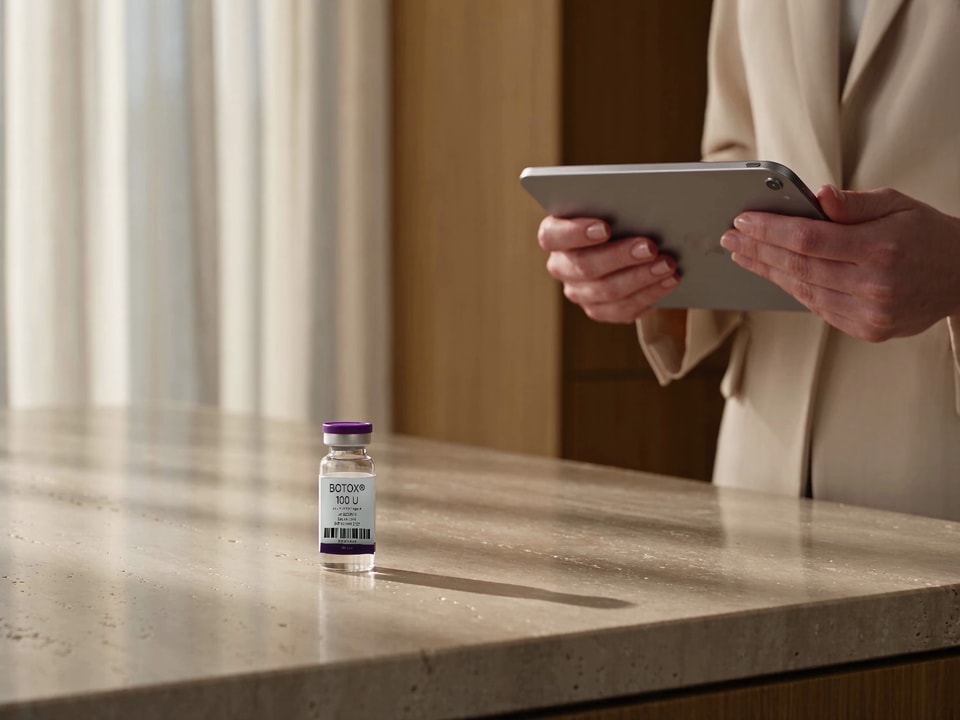
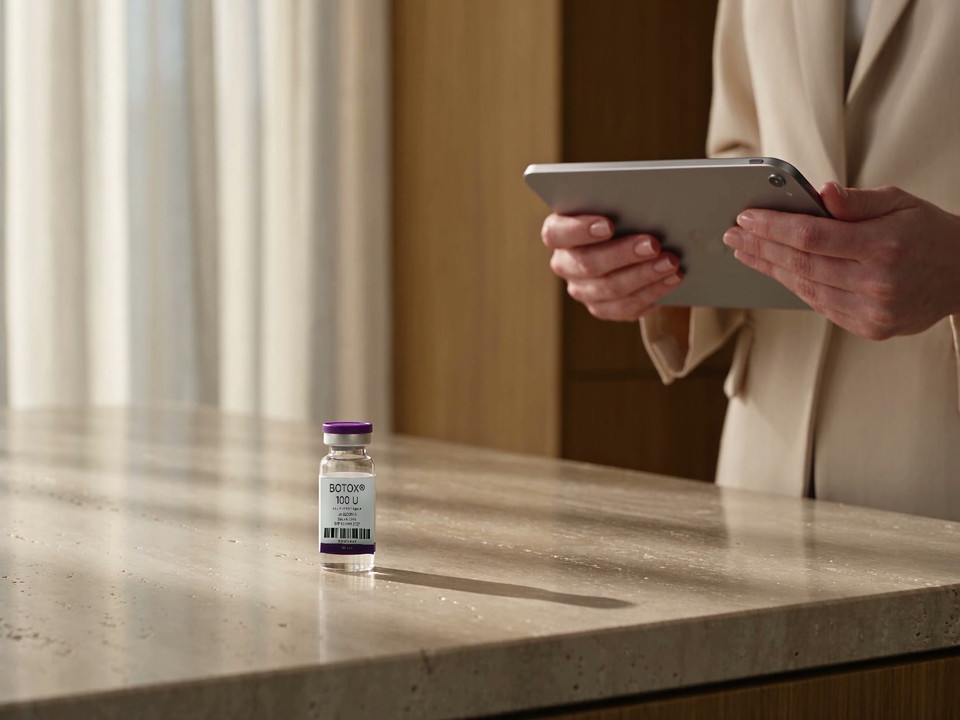
A practitioner scans the barcode of a Botox 100U vial with an iPad at the treatment-room bench

Capture the product detail

Bring product identity, batch, expiry and usage into the record at the point of treatment.

Patient context and opportunities

Bring the next conversation into view.

See patient-specific prompts in the treatment card, with the assessment and current plan close by. Review the reason behind a prompt, discuss what matters to the patient and decide what belongs in their plan.

  • Prompts in the treatment cardKeep the opportunity and its context visible while the practitioner considers the next conversation.
  • The assessment and plan alongside itReview assessment findings and existing plan items, including the separate booking and purchase states that need attention.

AI ambient listening and practitioner review

Review the draft. Decide what becomes the record.

Let the conversation become a transcript, then a structured DappleAI draft. Keep the patient’s social history and preferences in context, from shift work to the routine that fits their day. Review, edit and save the note yourself.

  • Deliberate insertionChoose when to add the draft to your existing note, then review the combined wording before saving.
  • Saved versions and later editsSaves retain note versions and flag later edits. The author can edit an eligible note on the calendar day it was created, until midnight in the note’s location timezone. It then becomes read-only. A newer save from another device prompts a conflict check.

From the note to the follow-up

A personal message to carry the conversation forward.

Add a personal message in the note to accompany your clinic’s treatment-specific aftercare. DappleAI can help draft that message for your review, while your configured automation brings it together with the clinic’s aftercare instructions.

A practitioner sits alone reviewing information on a supported iPad after the visit

Your personal aftercare message

Enjoy your upcoming holiday, Sophie. Remember SPF 50+.

Assessments and recommendations

See how assessment conversations reach the plan.

Review recorded assessment activity and recommendations added to treatment plans by clinician and month. Filter by location to see how the workflow is being used across your clinic.

  • Clear measuresAssessment completion records the presence of assessment data. An actioned recommendation is one added to a treatment plan.
  • A useful record across visits.Review earlier notes, dated settings and the patient’s treatment context when they return.

Trust and compliance

Your clinic stays in control.

Keep practitioner judgement, access and clinic configuration clear throughout the workflow, from the first check to the saved treatment record.

Feature availability depends on your plan, enabled features and access permissions.

  • Encrypted storage
Explore our Trust Centre
Practitioner review
Practitioners review status information, markings, settings and AI drafts, and decide what to record.
Controlled access
Role and access settings determine which clinical information and actions team members can use.
Record context
Saved note versions, later-edit flags and dated treatment information preserve the context of the record.
Your configured workflow
Set treatment requirements, practitioner forms, billing and stock behaviour around the way your clinic operates.

Before you start

FAQs

Explore the details that make a treatment record work for your clinic.

What does the clinical note bring together?

The note connects treatment text, anatomical markings, photographs, product use and practitioner forms with the patient’s medical context. Script status, consent, required patient forms and photo capture each remain visible alongside the treatment. Assessment findings, patient-specific prompts and the current plan give the practitioner context for the next conversation.

How does automatic anatomical detection work?

When a practitioner places a mark on the interactive face, DappleOS maps its position to the anatomical regions in the selected diagram. The practitioner can choose the intended region where areas overlap or reassign it. Detection describes the location of a practitioner-placed mark; it does not analyse a patient photograph or recommend treatment.

Can we bill by unit or by treatment area?

Yes. Products configured to bill from the face map use the recorded units for their billing quantity. For area-based pricing, the configured treatment-option charge can remain in place while actual product use is recorded separately. A product configured as a consumable can track usage without adding another customer charge.

Can we record laser and device settings inside the note?

Yes. Attach a practitioner-only settings form to a treatment. It appears in the treatment card with configured fields, conditional questions, dated previous values and a copy-last action. Review and adjust the values for the current visit, then save the note to record the completed form in the patient’s history. These forms are separate from patient consent.

How do forms and financial consent fit into the workflow?

Practitioners can see required forms, review completed forms, and display or send outstanding ones from the note. For a form containing financial consent, prepare the itemised estimate and review amounts or ranges before sending. The patient reviews the financial summary and signs the configured form’s separate signature field. Each consent, form and script keeps its own status.

Does scanning a product update stock straight away?

Scanning identifies a registered product so it can be linked to the treatment. Review its details and record the quantity used. Where the location is configured to adjust stock from notes, saving the note records the stock movement. Draft product usage, saved stock movements, billing items and payment remain separate parts of the workflow.

Who reviews AI drafts, and can saved notes be edited?

AI does not make clinical decisions. AI ambient listening produces a draft only. The practitioner reviews the transcript and draft, deliberately inserts text into the note, edits and approves the content, then explicitly saves it. Saves retain note versions and later edits are flagged. Only the author can edit an eligible note, on the calendar day it was created in the note’s location timezone. It becomes read-only at local midnight, rather than after a rolling 24 hours. A newer save from another device prompts a conflict check.

Can the follow-up include a personal message from the note?

Yes. Add a personal message in the note to accompany the clinic’s treatment-specific aftercare. DappleAI can help draft the personal message from the note for your team to review and edit. The aftercare instructions come from content configured for the treatment or treatment option, and the clinic’s automation controls the follow-up workflow.

Have a question about your clinic’s workflow?

Ask about a specific part of the treatment record, or talk it through with our team.

Talk to our team