
Start with the work your clinic does.
The numbers have an appointment, a person or a recorded activity behind them.

Reporting and analytics for aesthetic clinics
Bring your clinic’s sales, appointments, patient activity and team performance into view. Compare the right period, investigate the records and keep the reports that help your next conversation.
At a glance
Start with the clinic overview. Follow the question into a comparison, the supporting records or a view of your own. Keep the detail connected to the day-to-day work.
Explore reports built around the activity of a specialist clinic.
Keep the measure, period and location in view as you compare.
Investigate the underlying records when your access allows it.
Choose a dataset, fields and filters, then save a useful report.
Share reports deliberately and keep useful measures close.
Connected clinic reporting
Start with a report built for the question. See sales and patient activity in Overview, explore utilisation and rebooking in Staff Performance, or focus on clinical, stock and communication workflows.
The numbers have an appointment, a person or a recorded activity behind them.
Explore report families, then open the view that belongs to your question.
Understand invoiced sales, treatment and skincare sales, refunds and the activity behind each measure.
Explore patients, bookings and team performance with the scope and definition kept visible.
Connect assessment recommendations, treatment planning, stock movements and inbox activity to the reports that describe them.
Staff Performance
Review utilisation and productivity with the practitioner, location and period in view. Bookable time excludes blocked time; scheduled time includes it. Keep both definitions clear before comparing performance or choosing a target. Agreed contractor calculations have their own rules and statements in Pays.
From the measure to the records
Choose a period and location, apply your filters and compare the same measure. Where drilldown is available to you, open the underlying records to understand the activity behind the result.
Keep what the measure counts visible. Total invoice sales describes invoiced value; it is different from money received.
Apply supported date, location and practitioner filters. Check the period, currency and measure definition before comparing results across locations. A currency label does not mean different currencies have been converted.
Investigate supporting rows with the active report scope retained. Access to a dashboard does not automatically grant access to its underlying records.

“A report should help you ask a better question. What changed, where did it happen, and what should we look at next?”
Your own reports
Choose a dataset, select the fields you need and narrow the result with filters. Use a table, visualisation or pivot, then save the useful view to a new or existing report.
Select fields, grouping and calculations from the data available to you.
Use rows for detail, a chart for comparison or a pivot for another way to organise the result.
Save the report so your team can return to a defined view without rebuilding the same question.
Sharing and location context
Share a report with selected people or groups. Set editing and drilldown access separately, and apply supported user or location filters to keep the view relevant. Pin eligible measures to Home for a useful starting point.
Viewing, editing and drilldown answer different access questions. Keep them separate.

Where supported, filter a shared report to the recipient’s location.

A useful team conversation
Use a shared view to discuss what changed and what deserves a closer look. Reporting explains recorded activity. KPI Hub adds targets, progress and the history of your team’s performance conversations.
Your Home dashboard
Administrators with Home analytics access can pin eligible report cards to their own Home dashboard. Choose the measure, confirm the pin and return to its source report when you want to look more closely.
DappleAI and scheduled summaries
Ask DappleAI a reporting question, or explore further from the report you are reviewing. Follow up on the answer and inspect its source and scope. Choose daily, weekly or monthly insight summaries to return to the activity that matters to you.
Enable the summary intervals you need and return to the full report for context.
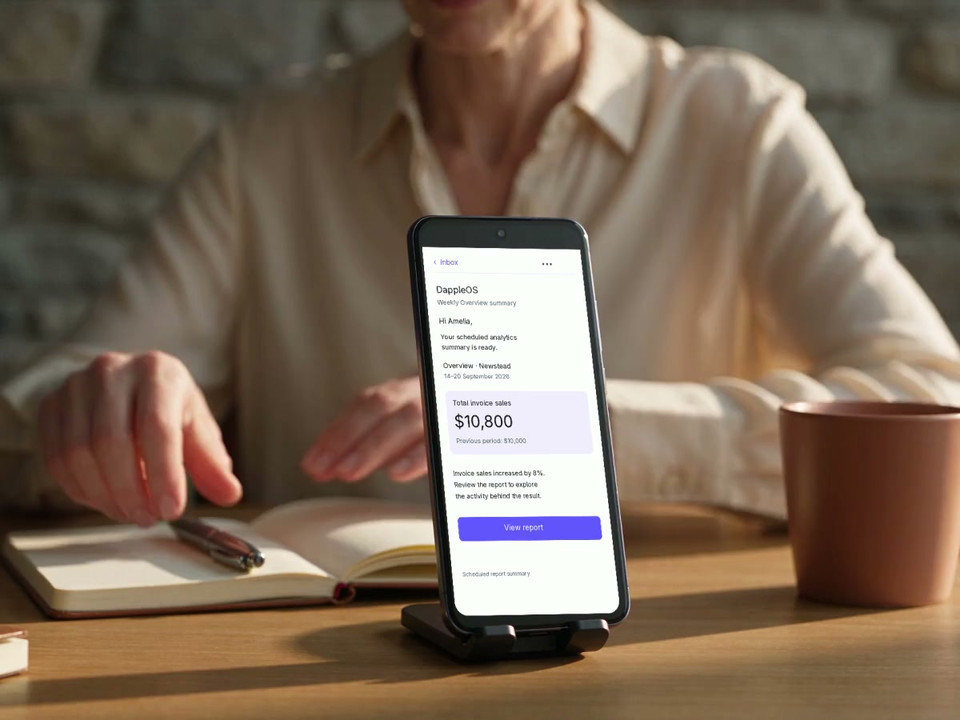
A summary gives you a starting point. The report keeps the measures and records available to investigate.
Suggested questions help you explore the visible reporting context. Review the answer alongside its measures and source information.
Enable supported daily, weekly or monthly summaries. Receive the summary by email and in the app, with a route back to the report.
One clinic. Connected activity.
Keep the activity and the report connected. Review recorded acquisition sources alongside bookings, follow a campaign’s defined goal, or investigate stock and communication activity. Acquisition and booking attribution describe captured touchpoints; they do not prove that a campaign caused a sale.
Trust and compliance
Keep access, definitions and sharing clear as your team moves from an overview to the records behind it.
Feature availability depends on your plan, enabled features and access permissions.
Before you start
Explore the reports, definitions and access settings that matter to your clinic.
DappleOS includes reports for business and financial activity, patients and appointments, staff performance, clinical activity, stock and communication workflows. Each report has its own measures and definitions. Your access determines the reports available to you.
Reports support the filters relevant to their data. Overview includes date and location scope; Staff Performance also includes practitioner scope. Apply your filters before reading the updated result, and keep each measure’s definition and time period in view when comparing.
Where a measure supports drilldown and your access allows it, you can investigate the underlying records with the active report scope retained. Permission to view a report does not automatically allow access to the raw records.
Recorded attribution can connect patients and booking requests with captured marketing touchpoints. Patient acquisition keeps first-touch context, while a booking uses the last captured marketing touch before that request, with a first-touch fallback. Where web tracking is unavailable, patient attribution may use a lead or self-reported source. Missing evidence remains unattributed. These records describe the available evidence, rather than proving campaign return on investment.
Yes. The report builder lets authorised users select a dataset, choose fields, apply filters and configure a table, visualisation or pivot. Save the resulting view to a new or existing report.
Supported reports offer exports for authorised users. The available export, search filters and sharing scope depend on your clinic’s configuration and access. Check the file’s filters, reporting period, time zone and currency before sharing or combining it with other data. A demo can confirm the export workflow your team needs.
Yes. Reports can be shared with selected users or groups, with editing and drilldown controlled separately. Where the report supports them, user and location filters can limit the shared view.
Reporting helps you understand recorded activity and investigate results. KPI Hub adds targets, progress and performance history. DappleAI supports questions from the reporting context, while scheduled insights can provide daily, weekly or monthly summaries by email and in the app.
Yes. Book a demo and bring the measures, locations and team questions you want to explore. A DappleOS team member can walk through relevant reports, definitions, custom views and access settings.
Ask DappleOS about the reports and workflows you want to explore.