Digital prescribing for specialist clinics
Prescribe with the patient record in view.
Select the medication, review the prescription and follow its electronic result from the patient record. DappleOS connects prescribing with the clinical context of your aesthetic or cosmetic medicine clinic.

At a glance
From the patient to the recorded result.
Keep the important details connected: the patient, the selected medication, the prescriber’s requirements and the electronic outcome.
Begin with the patient.
Start a prescription from the patient record or use an earlier prescription as a starting point.
Keep the particulars together.
Review the medication, prescription type, instructions and relevant authority details.
See what needs attention.
Bring patient and prescriber requirements into view before electronic prescribing.
Follow the electronic result.
Keep the returned eRx status and available token with the prescription.
Keep the next action visible.
Return to prescription history and follow up electronic creation errors.

Patient context
The next prescription starts with a familiar record.
Open prescribing from the patient record. When an earlier prescription provides a useful starting point, rescripting carries its medication and instructions into a fresh form for the prescriber to review.

- One patient context
Keep the prescription alongside the patient’s clinical notes, forms and other recorded care.
- A fresh prescribing decision
Prefilled details remain editable. The authorised prescriber reviews the new prescription before creating it.
- A different job from injectable scripting
Injectable scripting connects a practitioner’s request with the prescriber’s review. Digital prescribing is the medication prescription itself.
Medication and prescription detail
The detail belongs beside the medication.
Search the medication catalogue or start from favourites. Review the selected item’s description, strength, form and route alongside the prescription particulars, with the applicable fields shaped by the medication and prescription type.
Find and review the selected medication.
The medication description, route, strength and form remain together.

Make room for the prescriber’s review.
The clinical decision and the prescription details stay with the authorised practitioner.
- Review the selected item
Keep the medication description and supporting detail in view as the prescription is prepared.
- Structured particulars
Record quantity, repeats and instructions, with repeat interval and other details where applicable.
- Relevant authority information
Supported prescription pathways expose their authority and restriction fields. The prescriber remains responsible for obtaining any required approval.
Prescription quantities and directions are left for the prescriber to complete.

“Prescribing starts with the person, not the prescription. I want the clinical context close at hand while I review the medicine and its particulars, and a clear record of what I decided to issue.”
Before prescribing
Know which requirement needs attention.
The eRx readiness indicator brings patient and prescriber requirements into view. Open it to see the detail that needs attention, including incomplete patient information or prescriber setup.
- Patient information
Patient identity and profile details are checked as part of the prescribing pathway, with missing information explained.
- Prescriber and clinic setup
The available prescribing provider depends on the location’s country, enabled connection and prescriber setup. Australian eRx requirements include the relevant professional and healthcare identifiers.
- Consultation context
Where a real-time consultation requirement applies, it remains part of the prescribing workflow.
Electronic prescribing
See the electronic result in the record.
Keep the creation state and returned eRx token attached to the prescription. When electronic creation succeeds, the record can show the active status and available token without sending the team to a separate list.
- A meaningful status
Creating, active and error states distinguish work in progress from the returned electronic outcome.
- Your clinic’s patient experience
Patient visibility can show the prescription and token, show the record without its token, or hide the prescription list according to brand configuration.
- The next step remains distinct
A returned token is available for the pharmacy workflow. It does not establish that the medicine has been dispensed.

A familiar clinic. A clear next step.
Patients can return to their prescription through your clinic’s branded experience. The available token and pharmacy action follow the prescription state and your visibility settings.
Explore your clinic’s patient app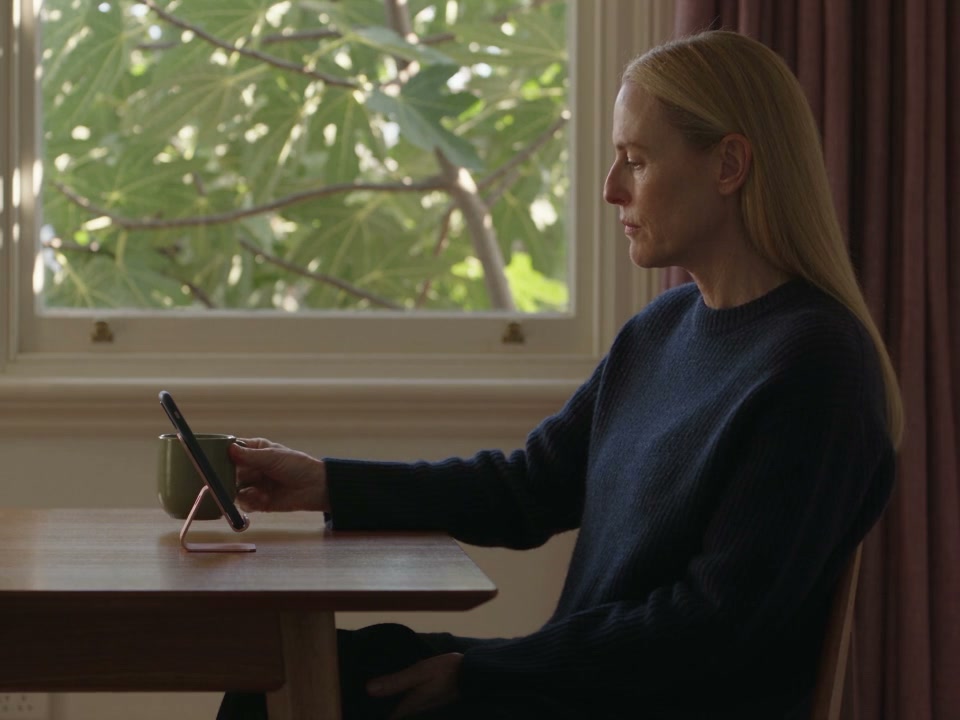
Follow-through and history
An exception should lead to a next action.
If electronic creation fails, retain the error with the prescription and alert the prescriber. An assigned task can bring the follow-up into the team’s work, while the patient record keeps active and inactive prescription history available.
The error stays with the prescription.
The prescriber can return to the patient record and investigate the electronic creation result.

Bring follow-up into the working day.
Notifications and assigned tasks support the next action, with responsibility kept clear.
- A recorded failure
The electronic error is kept with the prescription so the prescriber can investigate and take the appropriate next step.
- An assigned follow-up
The failure workflow supports a task assigned to the prescriber. Creating that task and resolving the issue are separate actions.
- Useful prescription history
Return to earlier prescriptions, print where available, or begin a fresh prescription from an existing record.
Trust and compliance
Prescribing stays with the authorised practitioner.
Keep patient context, access and connection requirements clear. The prescriber makes the clinical decision and reviews the prescription before it is created.
Feature availability depends on your plan, enabled features and access permissions.
- Encrypted storage
- Authorised prescribing
- The prescribing workflow is scoped to the appropriate practitioner roles and clinic configuration.
- Connected prerequisites
- Patient, prescriber and organisation details support the configured electronic prescribing pathway.
- Visible electronic outcomes
- Recorded status and error context distinguish a local record from a returned electronic result.
- Controlled patient visibility
- Brand settings determine the prescription information available through the patient experience.
FAQs
How is digital prescribing different from injectable scripting?
Digital prescribing creates and maintains a medication prescription, including the connected eRx result. Injectable scripting supports the separate workflow of a practitioner’s patient-specific request and a prescriber’s review. DappleOS connects these clinical activities while keeping their responsibilities distinct.
What eRx setup does our clinic need?
Provider availability varies by country, clinic connection and prescriber setup. The Australian eRx workflow uses the configured clinic and prescriber connection, professional and healthcare identifiers, and required patient information. A demo can review your roles, identifiers and prescribing model with the DappleOS team.
Can we start from an existing prescription?
Yes. Rescripting can prefill the medication and instructions from an earlier prescription. It starts a fresh form for the authorised prescriber to review and complete, rather than renewing a prescription automatically.
How do medication and authority details appear?
The selected medication and prescription type determine the applicable quantity, repeat, instruction and authority fields. Relevant medication and restriction information stays in the workflow. The prescriber is responsible for obtaining any authority approval required for the prescription.
What can patients see?
Your brand’s prescription visibility setting controls whether the patient experience shows the prescription and available token, the prescription list without tokens, or no prescription list. A token becoming available is separate from dispensing or successful delivery of a message.
What happens if electronic creation fails?
The prescription retains the error, the prescriber receives an in-app notification, and the failure workflow supports an assigned follow-up task. The prescriber reviews the issue and decides the next action.
Can we print, rescript or cancel a prescription?
The clinic record includes print, rescript and cancellation controls where applicable. Cancellation changes the local record; the electronic cease behaviour depends on the connected prescribing pathway. The DappleOS team can demonstrate the exact lifecycle for your clinic during a demo.
Does prescribing include dispensing labels?
Dispensing and patient-specific labels are separate from prescribing. Availability depends on the clinic’s enabled stock and fulfilment setup, staff permissions and eligible shipped stock. A demo can confirm whether that restricted workflow is available for your clinic; creating a prescription does not itself authorise dispensing.
Ask DappleOS
Explore the setup, prescribing pathways and patient experience that fit your clinic.