

Country

Choose your country

AustraliaGlobal website

Clinical Library for cosmetic and aesthetic clinics

Your clinic’s knowledge, where the team needs it.

Bring your cosmetic and aesthetic clinic’s SOPs, policies and guidance into one searchable library. Keep published procedures close to the treatment note, record staff acknowledgements and give each document review a clear next step.

Your clinic’s knowledge

One home for the way your clinic works.

Write and organise your own SOPs, guidance, policies and protocols. Search titles and content, filter by document type or treatment, and keep published documents, drafts and archived material clearly identified.

A deliberate publishing step

Save your working document, then publish its title and content as a new version when you are ready.

History that stays with the document

See earlier published text, who published it and when. Editing the working text does not replace the published text shown in notes.

Clinic-owned content

Your team writes and approves the procedures. DappleOS gives them a connected home; clinical decisions remain with your practitioners.

In the working day

The relevant SOP, beside the note.

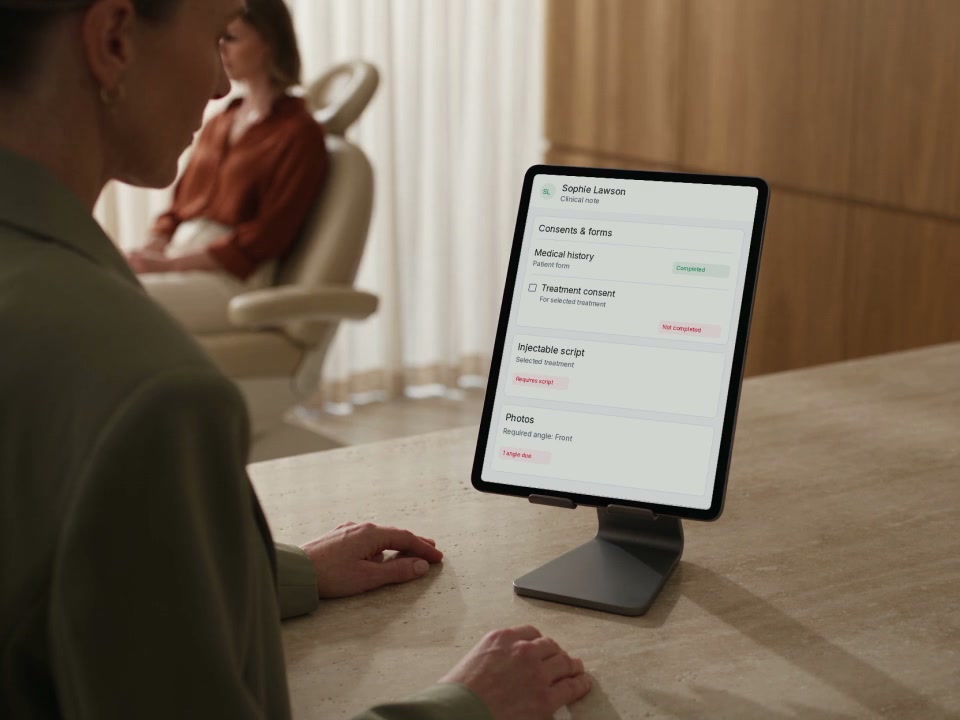
Link a document to a treatment or treatment option. The published procedure appears on the treatment note, ready to open in a side panel without losing the patient context.

A direct path to the procedure

Open the document from its treatment chip. Read the published text and see the linked product’s dose ranges together.

Your product-specific ranges

Compare recorded doses with the clinic’s configured ranges. An over-range quantity can show a warning or ask for a reason, depending on the clinic’s setting.

Practitioner judgement stays central

Checks use the information recorded in the note. They do not decide clinical suitability or guarantee a safe dose.

Explore clinical notes and markings

Current-version acknowledgements

See who has acknowledged this version.

Choose which published documents ask staff to confirm they have read them. The Read register shows confirmations and outstanding readers for that version, giving the manager a concrete starting point for follow-up.

A clear action for the reader

Staff confirm the current version, with the date recorded against their acknowledgement.

A fresh check after publishing

Publishing a new version makes previous-version readers pending again. The earlier acknowledgement remains on record.

A useful management view

Editors can see the current version’s confirmed and outstanding readers. A confirmation records the staff member’s acknowledgement; it is not an assessment of competence.
Document review

Give the next review a date and an owner.

Set a document owner and review date. Published documents approaching their review date create a task for the owner, so keeping procedures current becomes visible team work.

A reminder before the due date

The review sweep creates a task within 14 days of the review date, or when an outstanding review is already overdue.

An accountable next step

The task goes to the document owner, or its creator if no owner is set. The library also identifies overdue review dates.

Review the document, then set its next date

Keep the procedure and its review task connected. Moving the review date closes the old reminder and gives the next review its own place.

Explore tasks and team handovers

Bring your existing documents

Start with the SOPs you already have.

Import a Word document or PDF with AI to prepare an editable library draft. Check the result against the original, review any suggested dose ranges, and publish the document yourself.

A draft to review

AI import does not publish your procedure. The imported document is identified so the team knows it needs a human check.

Connected to your catalogue

Suggested dose ranges are added only for products matched in your catalogue. Unmatched product names are surfaced for review.

An optional starting point

Import requires AI access and editor permission. You can also write or paste content into the editor.

A more useful team review

Start with what is outstanding.

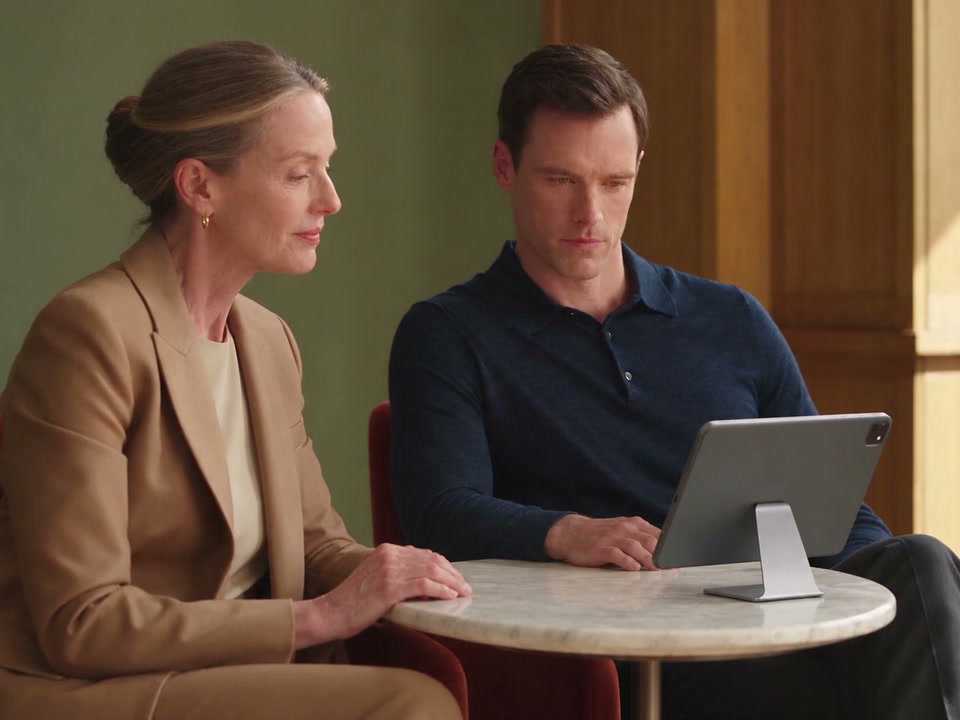
Bring the current-version Read register, due review dates and assigned review tasks into the same conversation. Follow up with the people who still need to confirm a procedure, or the owner whose document is due for review.

Two clinic colleagues reviewing information together on a supported iPad

Which version are we discussing?

Check the document’s published version and history before reviewing acknowledgements.

Who needs a follow-up?

Use the Read register’s outstanding readers and the review task’s owner to agree the next action.

Less separate tracking

Keep procedure text, reading confirmations and review tasks connected, reducing the need to maintain a separate sign-off spreadsheet alongside your documents.

Trust and compliance

Your clinic owns the content and the decisions.

Keep procedures under deliberate human control, with distinct reading and editing access. Your practitioners remain responsible for clinical judgement and the content your clinic approves.

Feature availability depends on your plan, enabled features and access permissions.

  • Encrypted storage
Explore our Trust Centre
Role-based access
Library reading and editing permissions are distinct. The Read register is available to editors; note access follows the relevant note permissions.
Recorded publication
Published document text has a version, publisher and date. Document changes and acknowledgements are audited.
Review before publishing
AI import creates a draft. A person checks the text and any suggested ranges, then decides what to publish.
Clinic-defined guidance
Your clinic supplies and approves its procedures and dose ranges. Checks support review of the recorded information and do not replace professional judgement.

FAQs

Can we bring our existing clinic SOPs into DappleOS?

Yes. You can write or paste your procedures into the document editor, or use AI import for a Word document or PDF when your clinic has AI access. Import creates an editable draft for you to check against the original before publishing.

Does DappleOS supply the clinical procedures or dose ranges?

Your clinic writes and approves its own content and ranges. Clinical Library organises that information and connects it to relevant treatments. It does not provide clinical advice or decide a patient’s suitability for treatment.

Can practitioners read an SOP while writing a clinical note?

A published document linked to a treatment can be opened from that treatment’s note. The side panel keeps the note in view and brings forward ranges for the recorded product when available. Access follows your clinic’s library and note permissions.

What happens when we publish a new version?

Publishing keeps a snapshot of the document’s title and text, with a version, publisher and date. If the document requires acknowledgement, staff need to confirm they have read the new version. Previous acknowledgements remain associated with the version they confirmed.

How can a manager see what still needs attention?

Editors use the Read register to see who has confirmed the current published version and who has not. Review dates identify documents that need another look, while review tasks give the document owner a clear next action. A reading confirmation is not a competency assessment.

Can we control who reads and edits the library?

Yes. Reading and editing use distinct permissions, and the Read register is restricted to editors. Your library belongs to its clinic account; procedures are not automatically inherited from a separate parent account.

What can we explore in a demo?

We can walk through your document types, treatment links, staff acknowledgements and review responsibilities. Bring an example of how you manage procedures today, and the team can show how Clinical Library fits your clinic’s workflow and access requirements.

Ask DappleOS

Talk through your procedures, staff acknowledgements and review workflow.

Book a demo